標籤: ios

  • Progressive Web Application(PWA) 製作

    PWA 又稱「漸進式的網頁應用程式」,有很多文章已經有說明,參考這裡,或是參考這個都有說明。

    這次介紹一個 PWA 的好用工具:

    PWABuilder
    All the tools you need to build and deploy your Progressive Web Apps.

    操作方法簡化非常多,開始之前要注意幾件事情:

    • 準備一張  512×512 的 png logo (如果原本 logo 不夠大的話)
    • 要確保有更改網站內網頁的權限
    • HTTP Server 要注意安全性配置是否會阻擋根目錄的 json 和 js 檔案
    • 網站一定要有合規的 HTTPS 憑證使用

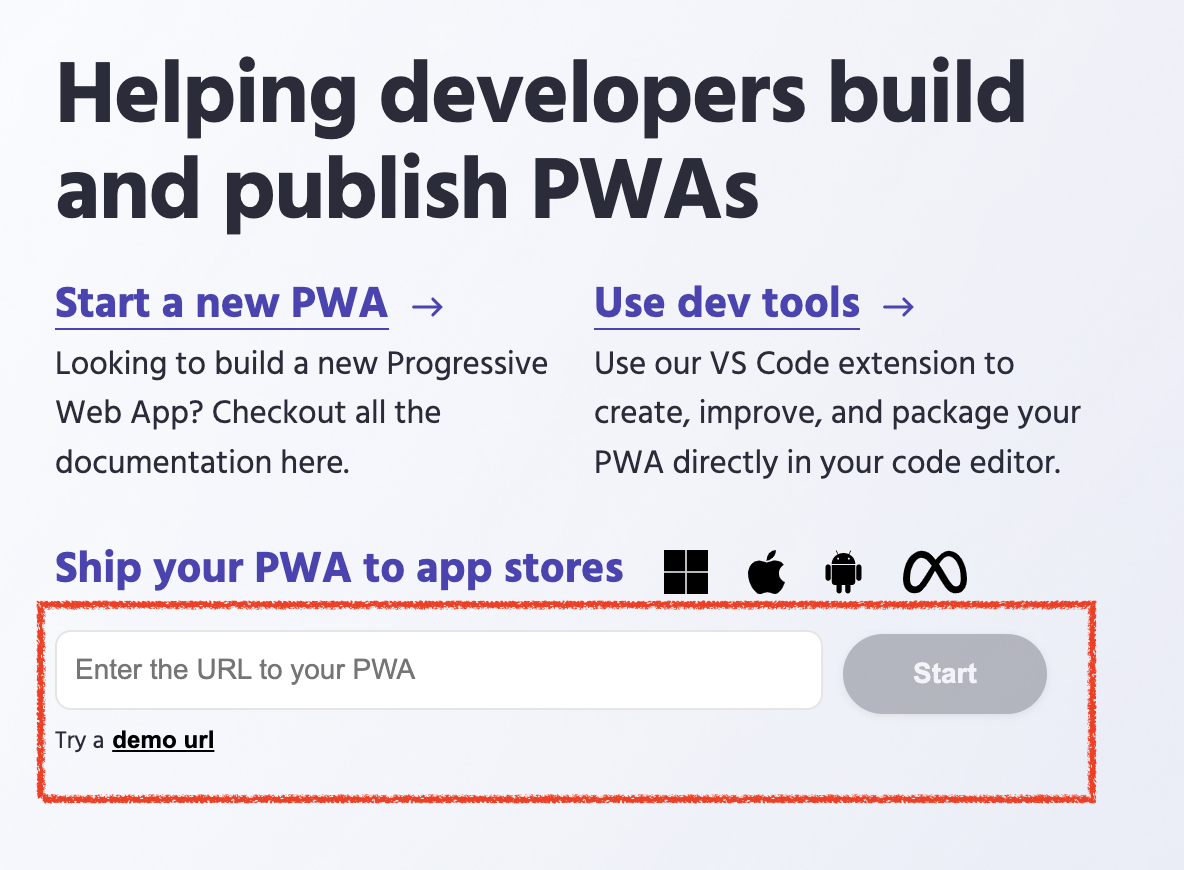
    首先進入網站以後輸入網址。
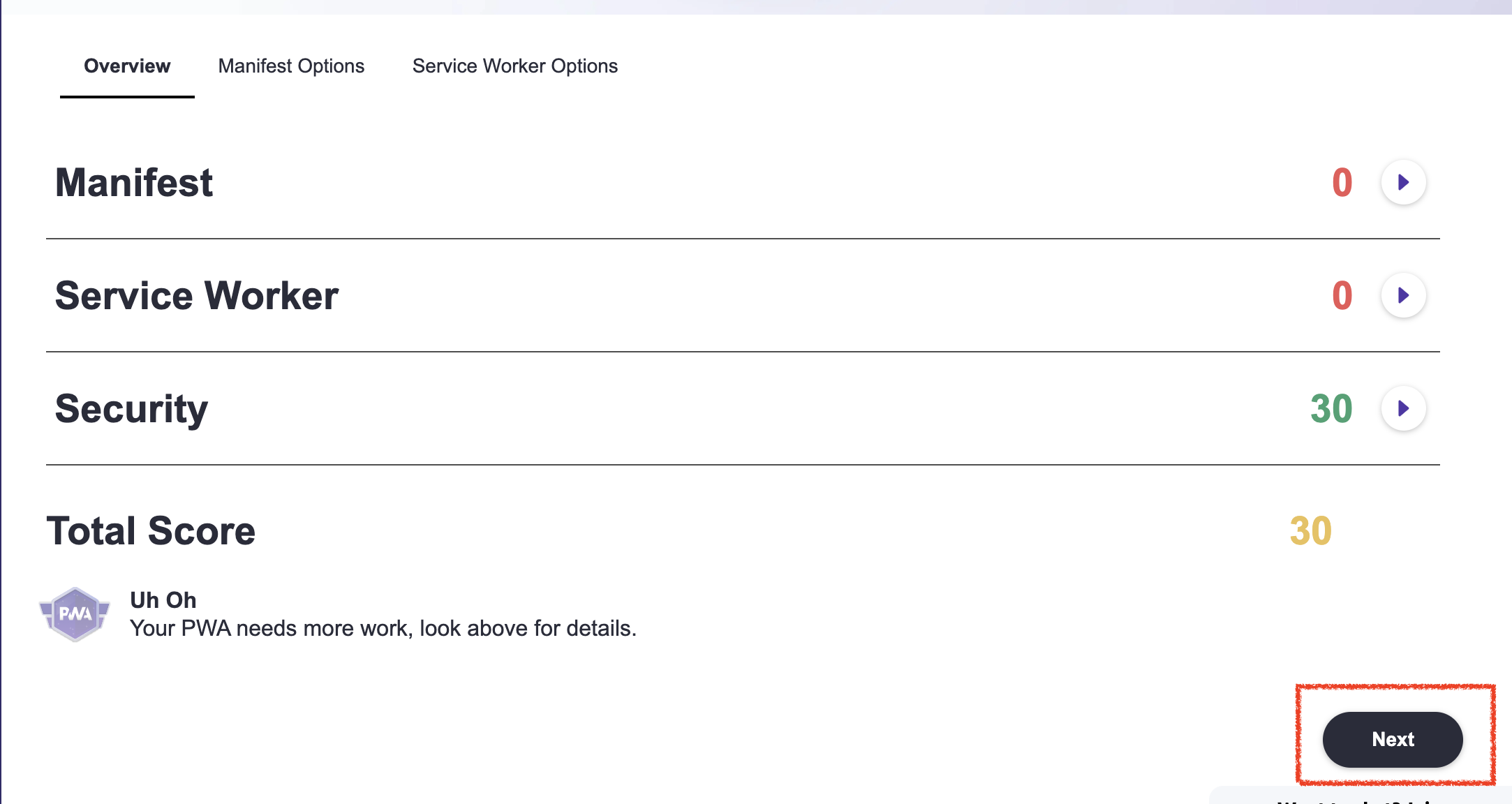
    系統便會開始撿測需要的資源,會給一份報告告訴你缺什麼,或是已經有了什麼。如下圖,會發現 PWA 需要的 Manifest.json 和 server-woker.js  都沒有,這時點擊一下右下角的 next 按鈕。
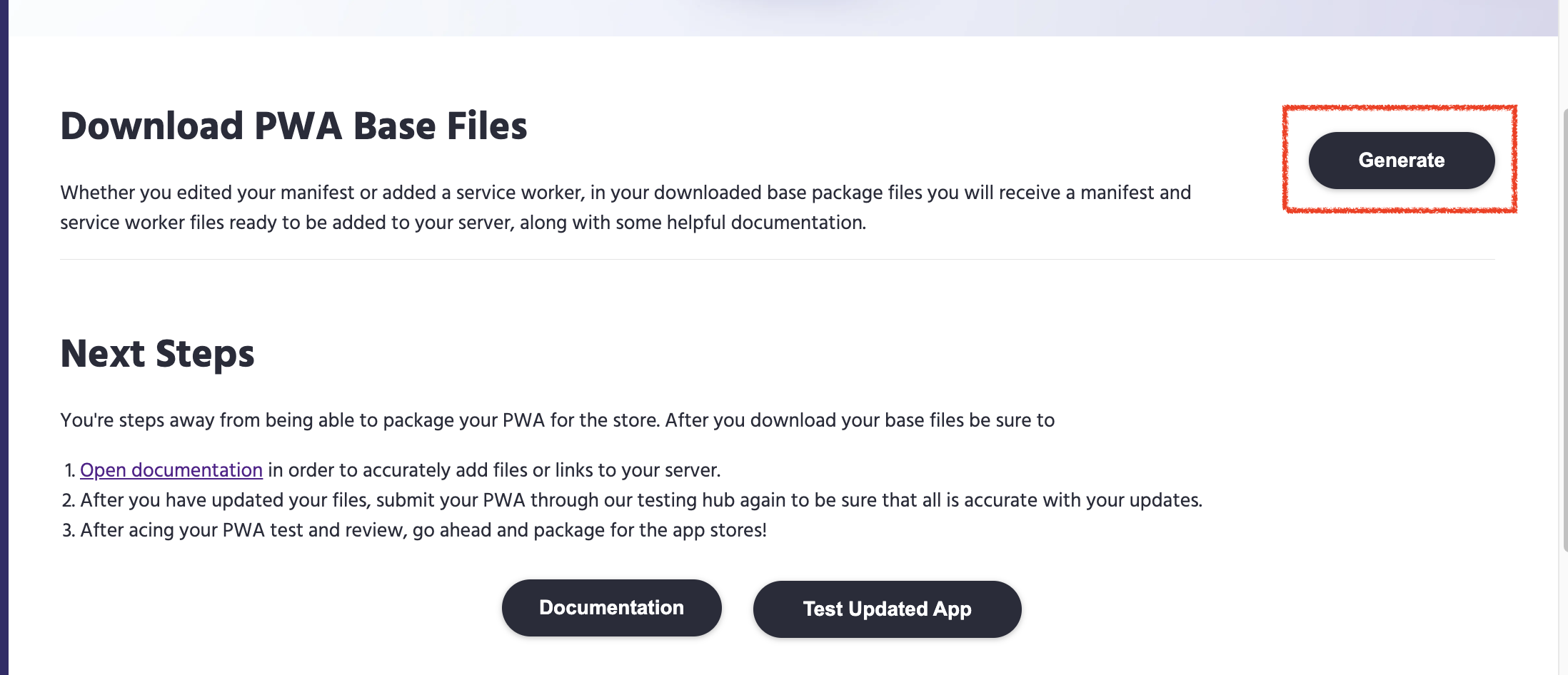
    點擊之後,會產生可以下載的 PWA 必要文件檔案。依照提示點擊 Generate 按鈕,下載必要檔案。
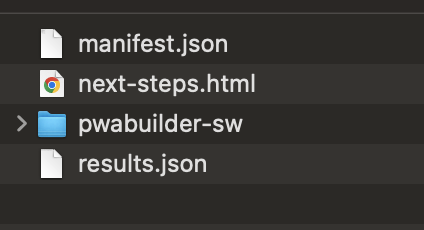
    下載完成解壓縮後,資料夾中會有如下檔案,點開 next-steps.html 會提示接下來要做的事情。
    next-steps.html 會導向 https://github.com/pwa-builder/pwabuilder-web/blob/V2/src/assets/next-steps.md 這個網址。簡單來說要做五件事情。
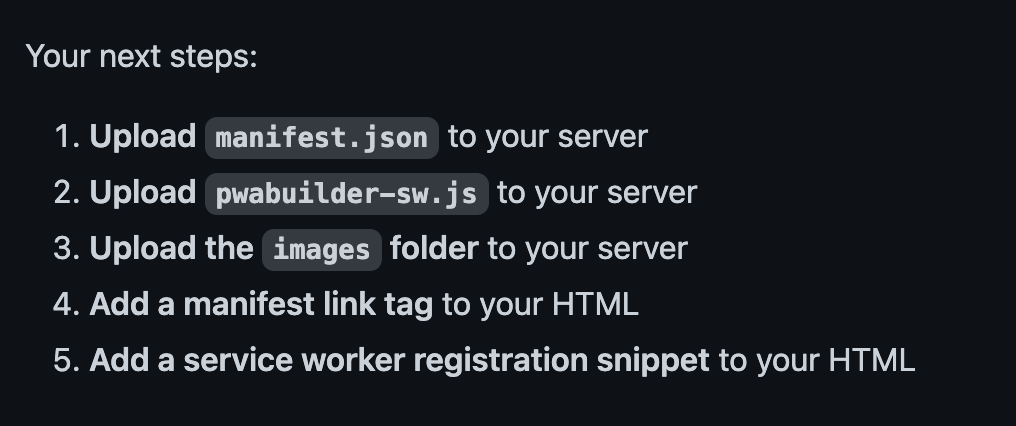
    1. 把目錄裡面的 manifest.json 上傳到網站根目錄。
    2. 把 pwabuilder-sw/pwabuilder-sw.js 上傳到網站根目錄
    3. 把準備好的 logo 改名 app-icon-512×512.png(預設 manifest.json 會吃 favicon.ico 可以從檔案中修改)
    4. 在網頁 header 中添加以下兩串代碼
      <link rel="manifest" href="manifest.json" />
      <script type="module">
         import 'https://cdn.jsdelivr.net/npm/@pwabuilder/pwaupdate';
         const el = document.createElement('pwa-update');
         document.body.appendChild(el);
      </script>


    以上,恭喜完成一個 PWA 基本配置,更進階的使用可以參考 manifest.json 中的配置:

    Web App Manifest | MDN
    Web App manifest 是一個 JSON 格式的文件,它提供了應用程式相關的資訊(像是名稱、作者、圖示、描述)。 manifest 的功用是將 Web …

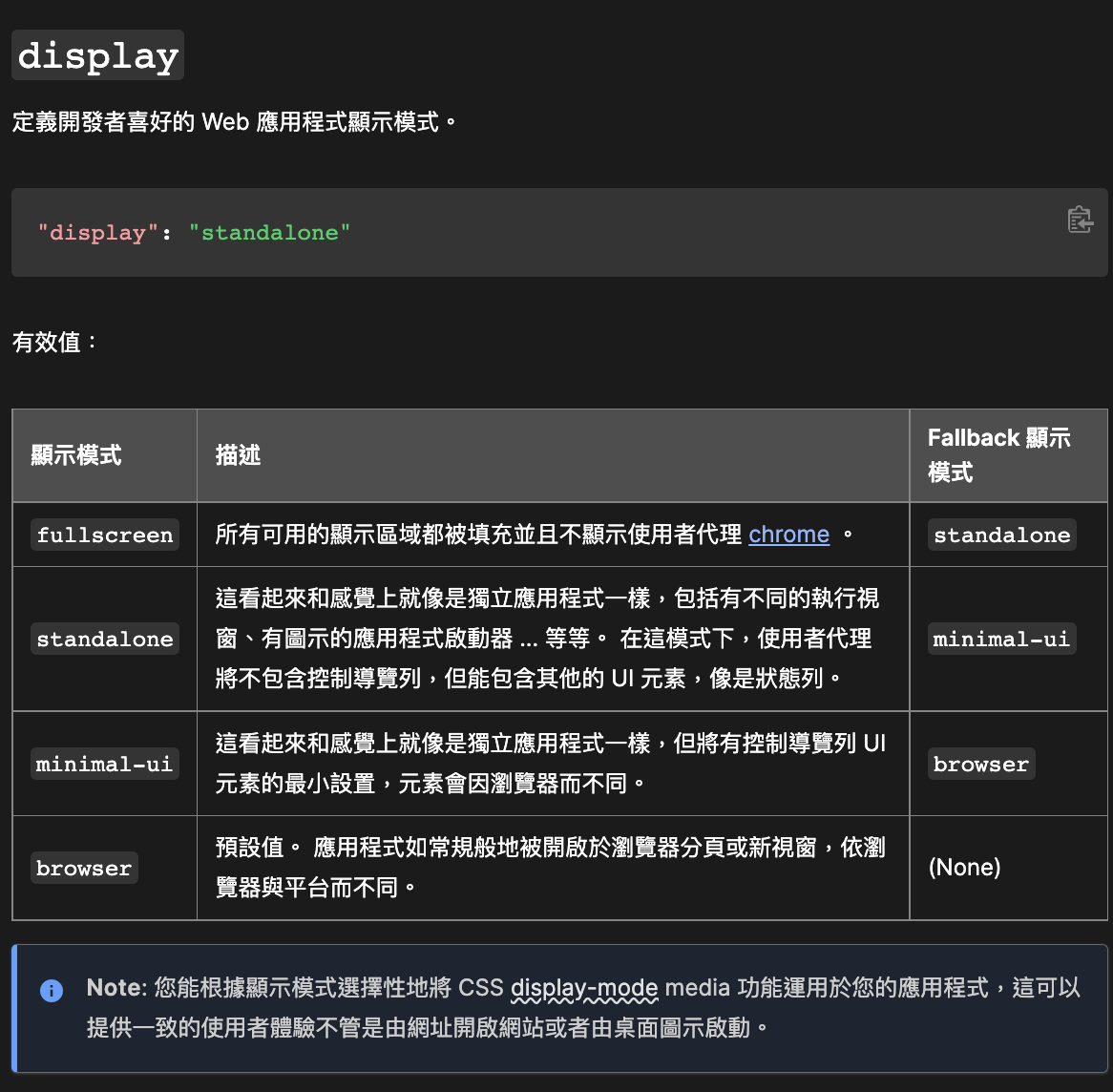
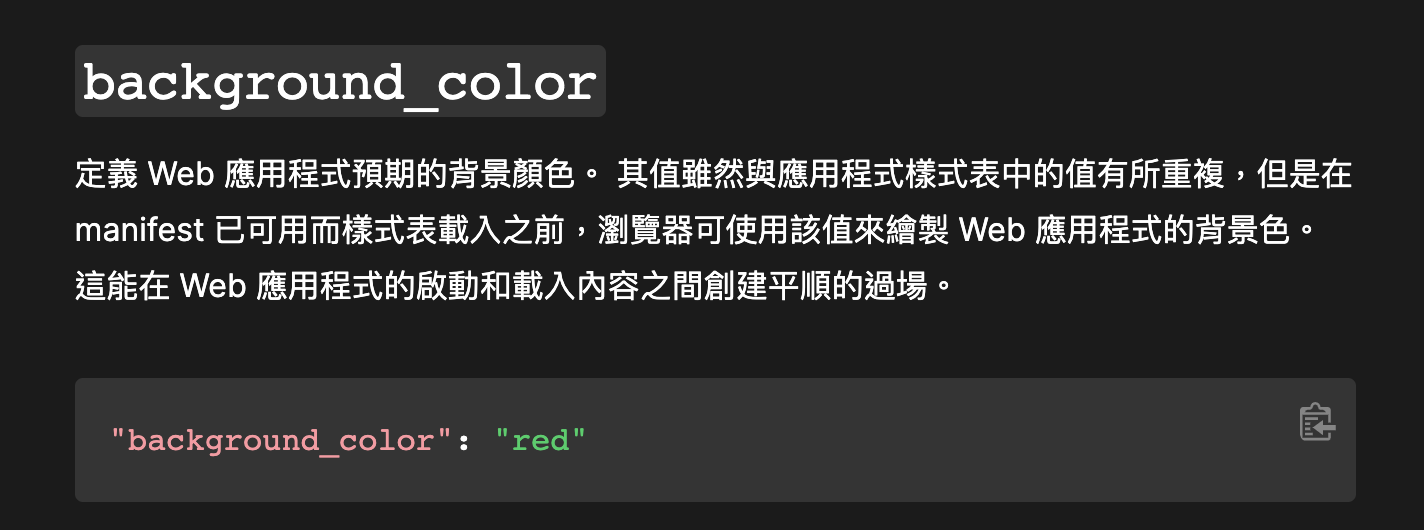
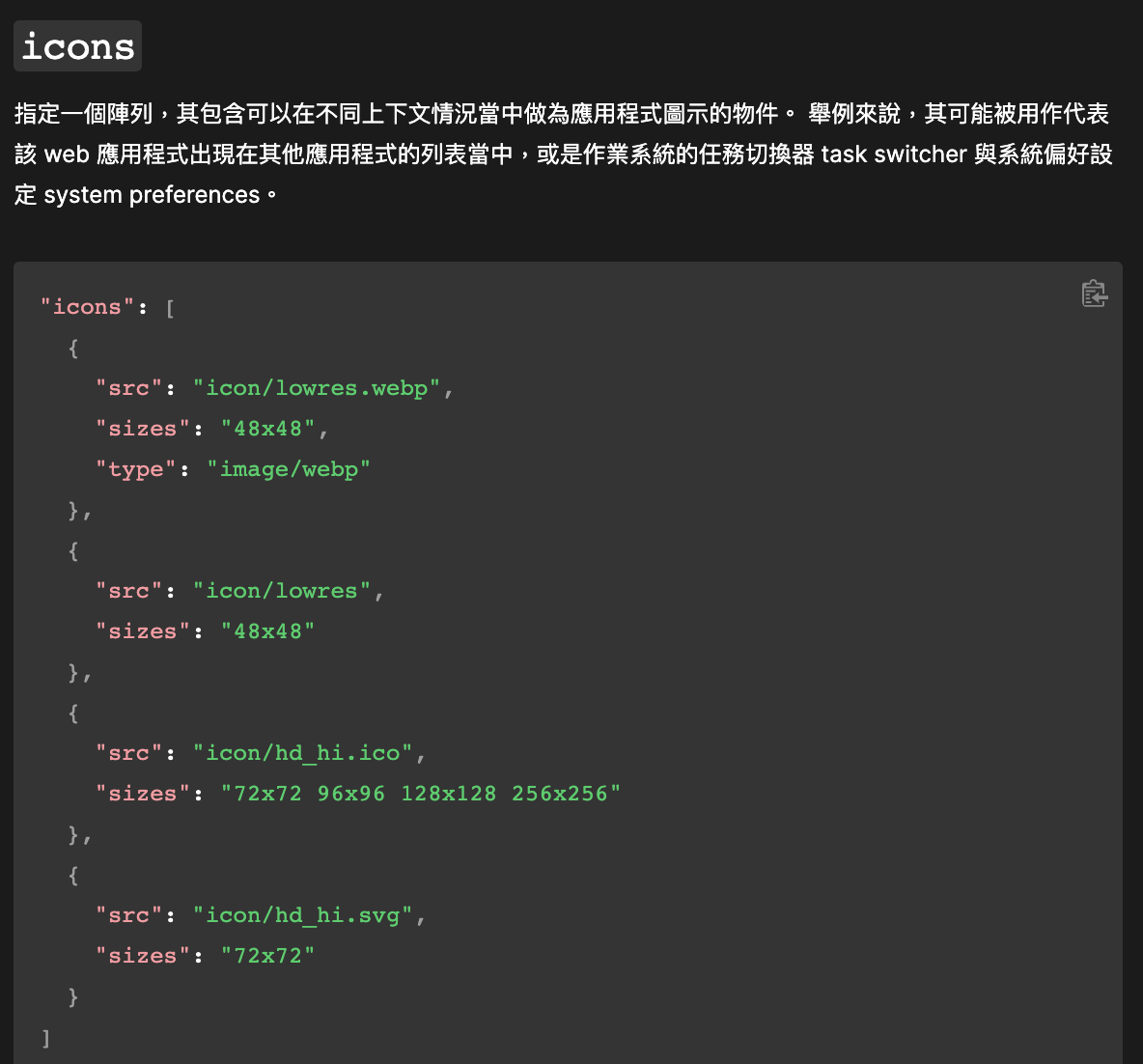
    這裡面有詳細說明。像是如果要讓主畫面圖片更清晰,可以在 manifest.json 把 icons 參數調整過。

    值得一提的有幾個設定:
    —-

    安卓手機上使用 PWA 方法,請參考這裡

    iOS 上就是開 safari 然後把網站加入主畫面就行啦,參考這裡

    同場加映:

    Progressive Web App 加入主畫面 : PWA 究竟加入和安裝了什麼 (2) – iT …
    加入主畫面 (Add to Home screen) 加入主畫面 (Add to Home screen) 常見的縮寫為 A2HS,可以看成是讓使用者將 Web App 進行 "安裝&quo…
    iOS PWA Compatibility-firt.dev
    What's supported on Safari on iOS and iPadOS for Progressive Web Apps
    Day 02 – 30 天 Progressive Web App 學習筆記 – 為什麼需要 PWA? – iT …
    為什麼需要 PWA? 很多人認為網頁沒辦法跟原生的 APP 相提並論,因為網站沒辦法像原生 APP 一樣快速、可靠、高互動等等 PWA …

    將您的網站轉換成高品質PWA
    使用 PWA Builder 從現有網站建立高品質的PWA


  • 一些關於 iMessage 的注意事項

    iMessage 是 Apple 提供有別於 SMS ,但是又放在同一個 APP 中的通訊管道,使用 Apple ID 作為帳號(廢話),內建在 Mac 和 iOS 系統中,非常方便。但近年來 Apple 積極的防治 iMessage 被當做廣告群發的通道,也導致很多人被阻擋、甚至被停止了 iMessage 的使用權限。這裡分享一些關於 iMessage 的注意事項:

    導致 iMessage 帳號被封鎖的原因

    如果 iMessage 帳號被封鎖了應該怎麼辦?

    If you can't sign in to your iMessage account or FaceTime on your Mac
    If you can't sign in to your iMessage account or FaceTime, one of these solutions might help.

  • iOS 權限提示(Protected Resources)

    在 iOS 的二進制檔案上傳之後,有時會有關於 Missing Purpose String in Info.plist  的錯誤,參考這個鏈結會發現需要在 info.plist 中添加說明的字串,這裡列表一份,以後可以直接使用。

    <key>NSSpeechRecognitionUsageDescription</key>
    <string>App需要您的同意,才能訪問語音識別</string>
    <key>NSAppleMusicUsageDescription</key>
    <string>App需要您的同意,才能訪問媒體資料庫</string>
    <key>NSBluetoothPeripheralUsageDescription</key>
    <string>App需要您的同意,才能訪問藍牙</string>
    <key>NSCalendarsUsageDescription</key>
    <string>App需要您的同意,才能訪問日曆</string>
    <key>NSCameraUsageDescription</key>
    <string>App需要您的同意,才能訪問相冊</string>
    <key>NSContactsUsageDescription</key>
    <string>App需要您的同意,才能訪問通信錄</string>
    <key>NSHealthShareUsageDescription</key>
    <string>App需要您的同意,才能訪問健康分享</string>
    <key>NSHealthUpdateUsageDescription</key>
    <string>App需要您的同意,才能訪問健康更新</string>
    <key>NSLocationAlwaysUsageDescription</key>
    <string>App需要您的同意,才能始終訪問位置</string>
    <key>NSLocationUsageDescription</key>
    <string>App需要您的同意,才能訪問位置</string>
    <key>NSLocationWhenInUseUsageDescription</key>
    <string>App需要您的同意,才能在使用期間訪問位置</string>
    <key>NSMicrophoneUsageDescription</key>
    <string>App需要您的同意,才能訪問麥克風</string>
    <key>NSMotionUsageDescription</key>
    <string>App需要您的同意,才能訪問運動與健身</string>
    <key>NSPhotoLibraryUsageDescription</key>
    <string>App需要您的同意,才能訪問相機</string>
    <key>NSRemindersUsageDescription</key>
    <string>App需要您的同意,才能訪問提醒事項</string>
  • Flutter 開發環境設定(影片)

    筆記一下,避免以後換新電腦都忘記這種三百年才會設定一次的開發環境。

  • Flutter 建立 iOS 專案遇到 Missing Purpose String in Info.plist 問題

    使用 Flutter 建立 iOS release 專案時,如果上傳失敗會得到一封檢測錯誤的信件,其中有一個錯誤是 Missing Purpose String in Info.plist ,裡面會有

    Your app’s code references one or more APIs that access sensitive user data. The app’s Info.plist file should contain a NSContactsUsageDescription key with a user-facing purpose string explaining clearly and completely why your app needs the data. Starting Spring 2019, all apps submitted to the App Store that access user data are required to include a purpose string. If you’re using external libraries or SDKs, they may reference APIs ….

    你會在你註冊的信箱中收到錯誤的信件

    關鍵字是 NSContactsUsageDescription ,表示缺乏要求權限的文字訊息。而在 info.plist 添加要求資訊以後還是會有錯,才發現是因為使用 permission_handler 這個 dart 套件,他需要一些額外設定。

    先放一下 Flutter 的 iOS 上架流程:

    发布的IOS版APP – Flutter中文网
    本文介绍了如何构建Flutter的IOS发布版,并将其发布到App Store或TestFlight。

    參考這兩個鏈結:

    iOS macro not working with new Flutter 1.20.0 Podfile · Issue #358 · …
    ? Bug Report After upgrading to Flutter 1.20.0 beta a new Podfile needs to be generated (flutter/flutter#45197). Afterwards I added the configuration to the Podfile but it is not taking effect. I r…

    主要就是要把不需要的權限給關掉才行,如果有用這個套件的話要特別注意。
    注意 Profile 更新過後,要把 Profile.lock 刪除再重新 pod install 一次。

    Update 權限參考:

  • Flutter 在 Mac 上安裝錯誤的解決方法

    最近在摸 Flutter 的專案,在 Mac 環境下一直裝不起來,先姑且不抱怨 Android Studio 在 MacOS 更新後突然跑超慢的,Flutter 安裝時似乎是抓不到 Android 設定檔案的位置,導致:

    [✓] Android Studio (version 3.1)
        ✗ Flutter plugin not installed; this adds Flutter specific functionality.
        ✗ Dart plugin not installed; this adds Dart specific functionality.

    一直出現類似的錯誤。後來參考鏈結

    Safe fix for Mac (Android studio 4.1+) It is in a different directory now, but symlink helps.
    Just run in the Terminal this command:

    ln -s ~/Library/Application\ Support/Google/AndroidStudio4.1/plugins ~/Library/Application\ Support/AndroidStudio4.1

    記得路徑換成正確的,此時是 AndroidStudio4.1
    soft link 建立起來以後就正確啦!

    筆記一下 Flutter 使用的 Dart 程式語言資料,找不到快速索引的文件,如果有找到再放上來。

    Day 1:為什麼要用 Flutter ? – iT 邦幫忙::一起幫忙解決難題,拯救 IT 人的一天
    本篇文章同步發表在 HKT 線上教室 部落格,線上影音教學課程已上架至 Udemy-HKT線上教室。想追蹤更多相關技術資訊,歡迎到 臉書粉絲專頁 …