標籤: linux

  • 使用 Nginx 基本認證保護動態內容。以一個舊網站為例。

    使用 Nginx 基本認證保護動態內容。以一個舊網站為例。

    最近處理一個舊網站,因為是 demo 用途所以帳號密碼基本上都隨便設定。但是我不想給陌生人掃進來 try error ,所以想到在 Nginx 上上添加 auth_basic 的功能。

    環境如下:

    1. 這個舊網站非常舊,是 ThinkPHP 的 5.x.x 版本
    2. 裡面會 php 設定網址後綴 .html 所以網址會變成 https://xxx.xxx/PATH/ooooo.html 這樣

    先上注意事項:

    1. 我最後選擇保護 .php 檔案,如果有其他需要保護的,甚至靜態檔案請確保 location 的設定。
    2. 因為是 location 選擇 php 檔案,所以驗證通過以後要走一樣的操作順序。
      • 得自首一下,這部分我 try error 很久,是試出來的結論。書到用時方恨少,以後有機會記得補上有系統的原理原則。
    3. 建議使用 HTTPS 避免 header 的帳密被中間人攻擊。
    4. auth_basic 幾個基本知識網路上滿多的,參考這裡這裡這裡

    補上程式碼:

    /PATH_AUTH_BASIC/auth_basic.conf

    # Directory protection rules
    location ~* \.php$ {
        auth_basic "Authorization";
        auth_basic_user_file /PATH/Need_Password.pass;
        # 如果驗證通過則走 PHP 動作
        include PHP-73.conf;
        # 如果是靜態的 .html 文件,則直接嘗試提供
        rewrite  ^(.*)$  /index.php?s=$1  last;   break;
    }
    

    而操作順序, 在 server 的 block 裡面如下:

    ...
    #Directory protection rules
    include /PATH_AUTH_BASIC/auth_basic.conf;
        
    #PHP reference configuration
    include PHP-73.conf;
    
    #REWRITE-START URL rewrite rule reference, any modification will invalidate the rewrite rules set by the panel
    include /PATH_REWRITE/rewrite.conf;
    ...

    補上 ThinkPHP 的 rewrite.conf 主要的設定:

    ...
    location / {
    	if (!-e $request_filename){
    		rewrite  ^(.*)$  /index.php?s=$1  last;   break;
    	}
    	try_files $uri $uri/ =404;
    }
    ...


  • Mac 使用 Nodejs 的管理工具 n 來切換版本

    Mac 使用 Nodejs 的管理工具 n 來切換版本

    Nodejs 在前端應用越來越廣泛,有時會遇到不同專案或是交接外包的 nodejs 版本不同,於是需要切換,以下筆記一下切換的方法。

    在 windows OS 上使用 nvm 做版本切換工具,參考。在 mac 上有 n 這個工具來處理。先資料來源,還有參考文章:

    安裝建議使用 brew

    brew install n

    基本操作

    sudo n latest // 升級至最新版本
    
    sudo n stable // 升級至穩定版本
    
    sudo n xx.xx // 升級至指定的版本號

    如果想要有互動介面版本管理,直接輸入 n 即可跳出介面。

  • Linux 上使用 Monit 做監控

    Linux 上使用 Monit 做監控

    Monit 是一個不錯用的監控軟體,可以實作異常警報或是重啟等動作。網路上有滿多教學的,但是可能是名字的關係,google 時常常找到其他東西。這邊記錄一下。

    有幾個注意點:

    1. M/Monit 是另一款延伸的應用程式,需要付費但有更多功能
    2. 常用的功能:
      • monitrc 設定 stmp 和 alert 。提供警報通道。
      • 設定監控閾值和動作(例如要重啟/開/關或是 alert)
    3. 也有一些延伸功能,例如添加網頁存取,可以透過網頁查看。
    4. 最有需要的應該是 loadavg 和 mem, cpu 的警報。
    5. 有個缺點是無法做 server down/up 的警報。
    6. 重啟指令:monit reload
      • 如果 mail 設定成功,會收到一封重啟通知。
      • monitrc 設定中有 log 位置設定,debian 中預設 /var/log/monit.log 有任何問題可以先看 log

    目前我使用大多作為警報收信,應該是還沒遇到不穩定的系統需要實作自動重啟,算是一種成就??

    這裡貼上一個設定範本 + 說明:

    # 檢察系統效能
    check system $HOST
    
    # 主要設定中 daemon 參數設定 60s,2 cyvles 表示 120s
        if loadavg (5min) > 2 for 2 cycles then alert
        if loadavg (15min) > 2 for 2 cycles then alert
    
    # 有些 server 有 2 顆的 cpu 數字會需要設定超過 100%
        if cpu usage > 190% for 2 cycles then alert
        if memory usage > 85% for 1 cycles then alert
        if swap usage > 30% then alert
    
    # 監控網路行為,要注意 interface 在 server 中是哪個?
    check network public with interface ens4
        if failed link then alert
        if changed link then alert
        if saturation > 90% then alert
        if download > 10 MB/s for 10 cycles then alert
    
    # for 5 times within 30 cycles 意思是: 在 30 個循環裡面出現 5 次(滿足條件)的狀況下
        if upload > 20 MB/s for 5 times within 30 cycles then alert
    
    # 監控硬碟空間的行為, data_directory 是辨識用名稱, PATH 後面的路徑是要監控的路徑
    check filesystem data_directory PATH /data/
        if write rate > 50 MB/s for 5 cycles then alert
        if read rate > 50 MB/s for 5 cycles then alert
    # 因為通常 space 不太會降回去,所以設定的 cycles 數字比較大,相對要特別注意警告
        if space usage > 80% for 60 cycles then alert
    
    check filesystem root_directory PATH /
        if write rate > 50 MB/s for 5 cycles then alert
        if read rate > 50 MB/s for 5 cycles then alert
        if space usage > 80% for 60 cycles then alert

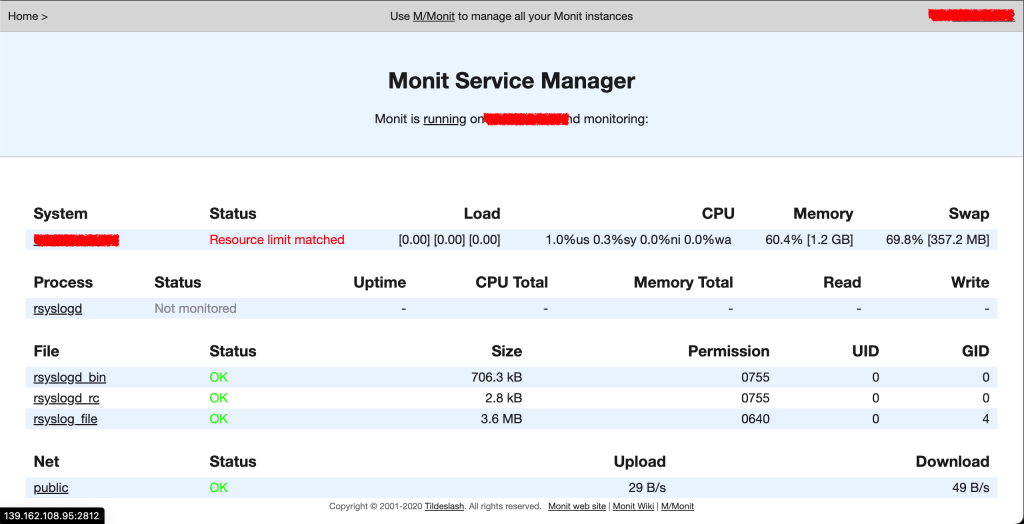
    附上實作顯示網頁的畫面截圖:

    同場加映找到的資源,以後可以少找一些吧。

    基於 centos 環境介紹和教學:

    基於 debian/ubuntu 環境這是介紹和教學(滿詳細的):

    這是延伸的監控服務,要付費的,但是功能更強大:

  • 開放原始碼防毒軟體 ClamAV

    開放原始碼防毒軟體 ClamAV

    ClamAV 是 Linux 相當知名的防毒軟體,參考官網:

    安裝的部分在網路上非常多:

    CentOS 7

    Debian 11 / Ubuntu 20.04

    Install ClamAV Antivirus in Debian 11 Bullseye and Ubuntu 20.04 – LinuxStoney
    ClamAV is an open-source Antivirus tool available for Linux distributions. It integrates Mail servers to scan attachments received. In addition to scanning

    MacOS

    How to Install ClamAV
    Learn to install and use ClamAV, an open source antivirus software. This tutorial shows how to install it on macOS, Ubuntu, and Windows.

    這裡也有 Linode 的教學文章:

    Scanning for Vulnerabilities with ClamAV
    If you suspect your Linode might be compromised by malware, you can boot into rescue mode and scan your system with ClamAV. Learn more with our guide.

    因為自己Mac 是用付費防毒,尚未測試過,不未來如果有需要可以試試看。另外有一款圖形介面的沿伸軟體 ClamTK,介紹如下:

    GitHub – ivangabriele/clamav-desktop: Cross-platform Desktop GUI for ClamAV antivirus.
    Cross-platform Desktop GUI for ClamAV antivirus. Contribute to ivangabriele/clamav-desktop development by creating an account on GitHub.

    幾點注意事項分享:

    1. 參考,建議  2 GB RAM ,否則掃描時會內存不足崩潰,這意味著如果買最小單位的 VPS 主機(如 Linode Nanode 1 GB 方案),基本上裝不起來的。
    2. 掃描位置需要特別注意下,不一定是掃描 application 的位置,常見包含 /tmp 和 /opt ,或是 user 權限所及的目錄要掃。萬一是救援狀況下,mont 新的磁碟使用救援的模式,不同 VPS 廠商有不同作法,Linode 參考這裡這裡
    3. 掃描可依照參數匯出文件,也可以直接顯示。因為 sesssion 的問題,可用 screen 之類的套件保持 session,也可以放到 crontab 中定時掃描,定時請參考這裡
    4. 記得定時更新病毒庫,參考這裡
    5. 有時掃毒是臨時性的,或是手動測試,動作後需要移除,如果是用套件管理的方式安裝,移除也是使用對應移除的指令即可。

    似乎很多人不太有習慣在 linux 上安裝掃毒軟體,一個原因是因為 linux 有較為嚴格的權限管理,通常影響到範圍有限,不過之前有遇過在 VPS 上安裝的 panel 有漏洞,導致整個被全面入侵。我認為通常在 linux 上掃到後門或木馬等惡意軟體的時候,要特別注意會產生惡意軟體的原因,現在比較不常見插旗的攻擊模式,大多都是透過漏洞/弱點建立後門,植入惡意軟體後躲一下,然後塞檔案或是感染其他部位,達到蒐集資料、修改資料、控制流程與詐騙等目的,或是使其成為僵屍網路之一。

    所以在資安上需要筆記幾個大方向,權當廢話練習:

    1. 異常流量、異常行為、亦嘗事件的監控警報
    2. 資訊安全的衛生教育與習慣,要對 NG 行為有敏感的小心思
    3. 平時要多注意資安新聞,小心注意 0Day 攻擊
    4. 重要檔案與資料備援的機制要處理
    5. 不同網站發現威脅時要做好各自客製的 SOP 。如果能夠多人合作較能減輕壓力,也不容易隱瞞原因

    以上。

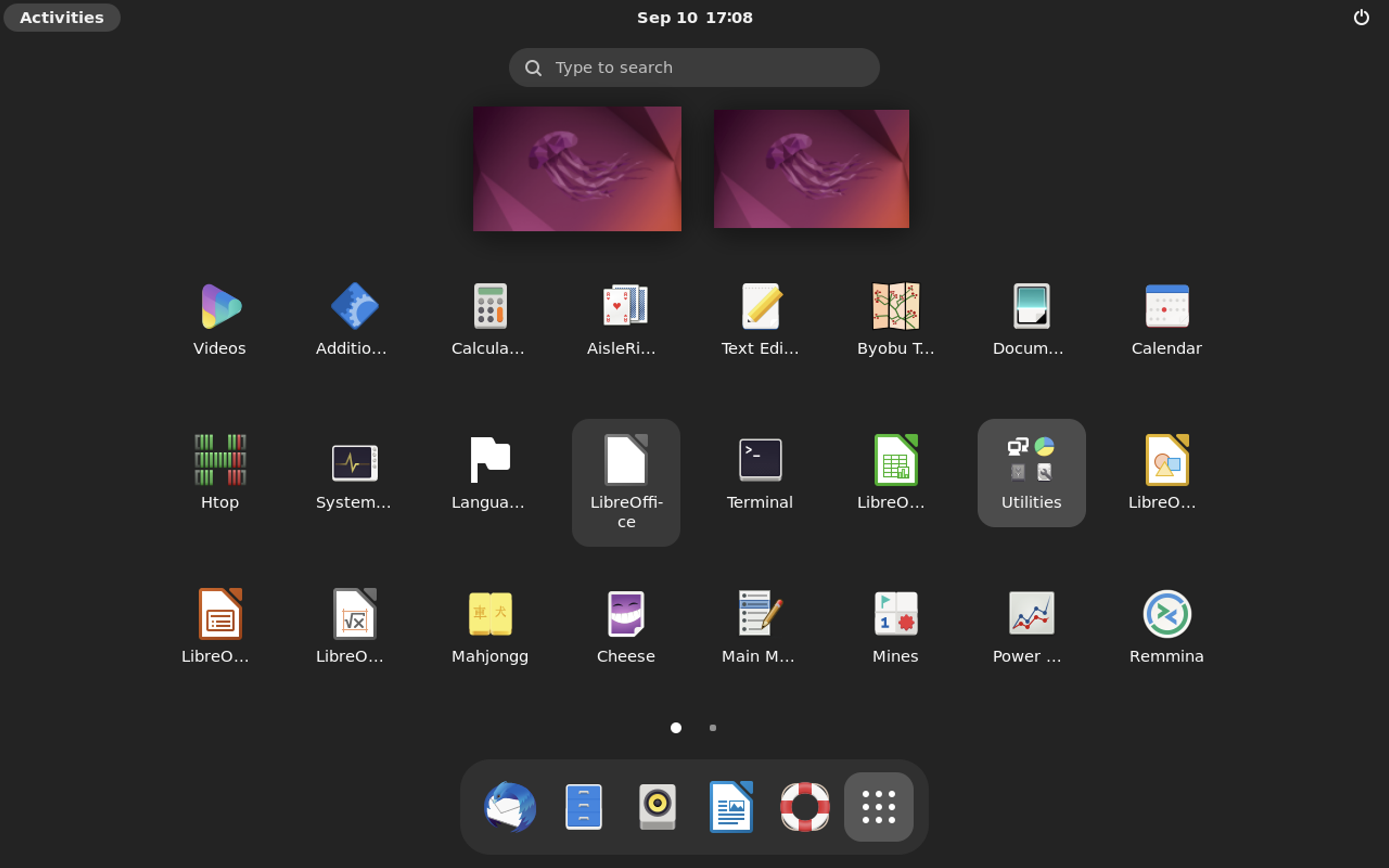
  • 製作 Ubuntu 遠端桌面伺服器

    有時我們會需要安裝一個雲端的伺服器是有 GUI 介面可以操作的,舉例像是用模擬器爬爬蟲,或是需要遠端協作需求的人,會需要在雲端伺服器上安裝一個桌面伺服器。

    先提一下會有缺點:

    1. 通常雲端 VPS 廠商不會有顯卡,所以遠端桌面勢必顏色和顯示上不會太好。
    2. 雲端廠商的規格和價格成正比,勢必無法和自己使用電腦上比較。
    3. 即便使用 GUI 介面,他畢竟是一台伺服器,你能連上表示其他人也能連,常常很容易忽略了伺服器需要設定的安全機制。

    這邊使用 Linode Ubuntu 22.04 安裝,安裝目標:

    1. Gnome desktop 環境
    2. XRDP 遠端桌面連線

    捨棄 Linode 文件中描述的 VNC 連線,是因為怎麼裝都連不起來…曾經懷疑是不是 Gnome 安裝錯了,後來發現根本是 VNC 設定有問題,果斷使用 XRDP 來處理。

    步驟:

    1. 首先參照 Linode 文件 確認購買一個伺服器,並且設定好伺服器時區\hostname\更新等等。
    2. 如果不使用 tasksel 安裝,則使用以下指令:
      sudo apt install ubuntu-desktop gnome-panel gnome-settings-daemon metacity nautilus gnome-terminal
    3. 如果使用 tasksel 安裝,請參考這裡 
      sudo apt install tasksel
      sudo tasksel install ubuntu-desktop
    4. 安裝 xrdp 功能,文件中使用的 OS 是 ubuntu 18.04 不過用 22.04 也行的:
      sudo apt-get install xrdp -y
    5. 如果使用 ufw 套件(可用 ufw status 或是 iptabes -h 指令檢查):
      sudo ufw allow 3389/tcp
    6. 如果使用 iptables 套件:
          1. 編輯設定檔案:
            nano /etc/v4
          2. 輸入內容並儲存(注意要開啟 3389 port):
            *filter
            
            
            # Allow all loopback (lo0) traffic and reject traffic
            # to localhost that does not originate from lo0.
            -A INPUT -i lo -j ACCEPT
            -A INPUT ! -i lo -s 127.0.0.0/8 -j REJECT
            
            
            # Allow ping.
            -A INPUT -p icmp -m state --state NEW --icmp-type 8 -j ACCEPT
            
            
            # Allow SSH connections.
            -A INPUT -p tcp --dport 22 -m state --state NEW -j ACCEPT
            
            
            # Allow HTTP and HTTPS connections from anywhere
            # (the normal ports for web servers).
            #-A INPUT -p tcp --dport 80 -m state --state NEW -j ACCEPT
            #-A INPUT -p tcp --dport 443 -m state --state NEW -j ACCEPT
            -A INPUT -p tcp --dport 3389 -m state --state NEW -j ACCEPT
            
            # Allow inbound traffic from established connections.
            # This includes ICMP error returns.
            -A INPUT -m state --state ESTABLISHED,RELATED -j ACCEPT
            
            
            # Log what was incoming but denied (optional but useful).
            -A INPUT -m limit --limit 5/min -j LOG --log-prefix "iptables_INPUT_denied: " --log-level 7
            
            
            # Reject all other inbound.
            -A INPUT -j REJECT
            
            
            # Log any traffic that was sent to you
            # for forwarding (optional but useful).
            -A FORWARD -m limit --limit 5/min -j LOG --log-prefix "iptables_FORWARD_denied: " --log-level 7
            
            
            # Reject all traffic forwarding.
            -A FORWARD -j REJECT
            
            
            COMMIT
          3. 編輯設定檔案:
            nano /etc/v6
          4. 輸入內容並儲存:
            *filter
            
            
            # Allow all loopback (lo0) traffic and reject traffic
            # to localhost that does not originate from lo0.
            -A INPUT -i lo -j ACCEPT
            -A INPUT ! -i lo -s ::1/128 -j REJECT
            
            
            # Allow ICMP
            -A INPUT -p icmpv6 -j ACCEPT
            
            
            # Allow HTTP and HTTPS connections from anywhere
            # (the normal ports for web servers).
            #-A INPUT -p tcp --dport 80 -m state --state NEW -j ACCEPT
            #-A INPUT -p tcp --dport 443 -m state --state NEW -j ACCEPT
            
            
            # Allow inbound traffic from established connections.
            -A INPUT -m state --state ESTABLISHED,RELATED -j ACCEPT
            
            
            # Log what was incoming but denied (optional but useful).
            -A INPUT -m limit --limit 5/min -j LOG --log-prefix "ip6tables_INPUT_denied: " --log-level 7
            
            
            # Reject all other inbound.
            -A INPUT -j REJECT
            
            
            # Log any traffic that was sent to you
            # for forwarding (optional but useful).
            -A FORWARD -m limit --limit 5/min -j LOG --log-prefix "ip6tables_FORWARD_denied: " --log-level 7
            
            
            # Reject all traffic forwarding.
            -A FORWARD -j REJECT
            
            
            COMMIT
        1. 執行指令:
          iptables-restore < /etc/v4;/sbin/iptables-save;ip6tables-restore < /etc/v6;/sbin/ip6tables-save;
    7. 設定 polkit 添加授權規則,編輯檔案:
      sudo nano /etc/polkit-1/localauthority.conf.d/02-allow-colord.conf
    8. 輸入以下內容後儲存,這主要功能是色彩管理避免需要多次輸入密碼:
      polkit.addRule(function(action, subject) { if ((action.id == "org.freedesktop.color-manager.create-device" || action.id == "org.freedesktop.color-manager.create-profile" || action.id == "org.freedesktop.color-manager.delete-device" || action.id == "org.freedesktop.color-manager.delete-profile" || action.id == "org.freedesktop.color-manager.modify-device" || action.id == "org.freedesktop.color-manager.modify-profile") && subject.isInGroup("{group}")) { return polkit.Result.YES; } });
    9. 重啟 XRDP:
      sudo /etc/init.d/xrdp restart

    連線時 windows OS 用戶使用內建的遠端桌面連線工具即可, MacOS 用戶推薦使用 Microsoft Remote Desktop 這套軟體。

    其他額外你可能需要的東西

    1. 安裝 Chrome: https://linuxize.com/post/how-to-install-google-chrome-web-browser-on-ubuntu-20-04/
    2. 安裝 Telegram:https://linuxhint.com/install-telegram-desktop-messenger-linux/


    參考文件:

    1. https://www.linode.com/docs/guides/set-up-and-secure/
    2. https://www.linode.com/docs/guides/install-vnc-on-ubuntu-20-04/
    3. https://operavps.com/linux-vps-with-gui-and-rdp/
    4. https://documentation.suse.com/zh-cn/sles/15-SP2/html/SLES-all/cha-security-policykit.html
  • Linux SSH 斷線後保持 session 的工具 – Screen

    紀錄一下之前用很久的一個 linux 套件,主要用途是作爲讓 Server 在再斷線後,依然可以跑池長時間非背景運作。

    安裝方法,權限問題請自行加上 sudo:

    # ubuntu \ debian
    apt-get install screen
    
    # centos
    yum install screen

    一些基本的操作:

    # 建立一個新的 screen 
    screen -U -S SCREEN_NAME
    
    # 進入已開啟的 screen
    screen -drU SCREEN_NAME
    
    # 列出所有 screen
    screen -ls

    至於進入 screen 內的操作,請參考:

    大概可以記住:所有指令都是 ctrl + a 開始。

    • c 是關閉一個建立一個新視窗。另外要離開當前視窗,就和一般 ssh 一樣輸入 exit 就行了,會殺掉當前視窗的 session。
    • d 是離開當前的 screen (keep session)
    • A 大寫的 a 可以重新命名當前的視窗,這很好用

    以前同事有分享一個 screenrc 設定檔案,不錯用。請自行取代 /etc/screenrc 檔案:

    startup_message off
    defencoding utf8
    encoding utf8 utf8
    #caption always "%{= wk} %{= KY} [%n]%t @ %H %{-} %= %{= KR} %l %{-} | %{= KG} %Y-%m-%d %{-} "
    #hardstatus alwayslastline " %-Lw%{= Bw}%n%f %t%{-}%+Lw %=| %0c:%s "
    #bindkey ^[z prev
    #bindkey ^[x next
    termcapinfo xterm*|rxvt* 'ti@:te@'
    termcapinfo xterm ti@:te@
    vbell off
    # C + left : prev
    # C + right : next
    bindkey "^[[1;5C" next
    bindkey "^[O5C" next
    bindkey "^[[C" next
    bindkey "^[[1;5D" prev
    bindkey "^[O5D" prev
    bindkey "^[[D" prev
    
    
    # C-a b : encoding big5
    # C-a u : encoding utf8
    bind b encoding big5 utf8
    bind u encoding utf8 utf8
    
    
    # C-b $num : move current window to number $num
    bind -c move 0 number 0
    bind -c move 1 number 1
    bind -c move 2 number 2
    bind -c move 3 number 3
    bind -c move 4 number 4
    bind -c move 5 number 5
    bind -c move 6 number 6
    bind -c move 7 number 7
    bind -c move 8 number 8
    bind -c move 9 number 9
    bindkey "^b" command -c move
    
    
    # F12 : fast kill
    #bindkey "^[[24~" kill
    
    
    #termcapinfo xterm 'hs:ts=\E]0;:fs=\007:ds=\E]0;bash\007'
    #caption always "%{= bk} %{= wk} %-Lw%{by}%n+%f %t%{wk}%{wk}%+Lw %=%{kw}%{= R}%{-}"
    
    
    shelltitle '$ |csh'
    
    
    defhstatus "\005t"
    #hardstatus on
    #caption always "%{= wk} %{= KY} [%n]%t @ %H %{-} %= %{= KR} %l %{-} | %{= KG} %Y-%m-%d %{-} "
    #hardstatus alwayslastline " %-Lw%{= Bw}%n%f %t%{-}%+Lw %=| %0c:%s "
    
    
    #buttom status bar
    caption always "%{= .G} %-w%<%{=ub .y}[%n %t]%{= .G}%+w "
    hardstatus alwaysignore
    #hardstatus alwayslastline "%{= .K} [%l]%<%=%{= .W}@%H %=%{= .y} %Y/%m/%d%{= .m} %C %A"
    
    
    #shelltitle '$|csh'
    #caption always "%{bw}%M/%d %c %{wb} %-w%{c}%n %t%{w}%+w%{k}"
    
    
    shell -$SHELL
  • 排程檢查服務是否正常

    好久以前遇到一些伺服器鬼故事,所以參考網路上的資料,弄了一個排程檢查系統服務的機制,配合上 crontab 可以使用。

    原則上,這個做法和把程式 try / catch 包起來一樣,掩耳盜鈴的行徑。在沒有安全疑慮的狀況下,建議配合 log 確認系統紀錄,這樣可以保持穩定又可以找到系統問題,不失為一個權宜之計。

    使用的環境是 CentOS7 / Linode VPS ,從指令上來看應該 debian 系列的也可以用才對。

    操作上只要把 service 的變數替換為對應的服務名稱即可,以下是 mysql 檢查重啟的 code.

    #!/bin/bash
    
    PATH=/usr/sbin:/usr/bin:/sbin:/bin
    
    service=mysql
    if [[ ! "$(/usr/sbin/service $service status)" =~ "running" ]]
    then
        echo "`date "+%Y-%m-%d %H:%M:%S"` | [logadm -on@`date "+%Y%m%d%H%M%S"`] "
        echo "$service is stop!!"
        /usr/sbin/service $service start
    else
        echo "`date "+%Y-%m-%d %H:%M:%S"` | [logadm -on@`date "+%Y%m%d%H%M%S"`] "
        echo "$service is running"
    fi

    同場加映,今天寫這篇時,網路上再找了一下,找到一些比較進階的檢查 code: