有時我們會需要安裝一個雲端的伺服器是有 GUI 介面可以操作的,舉例像是用模擬器爬爬蟲,或是需要遠端協作需求的人,會需要在雲端伺服器上安裝一個桌面伺服器。
先提一下會有缺點:
- 通常雲端 VPS 廠商不會有顯卡,所以遠端桌面勢必顏色和顯示上不會太好。
- 雲端廠商的規格和價格成正比,勢必無法和自己使用電腦上比較。
- 即便使用 GUI 介面,他畢竟是一台伺服器,你能連上表示其他人也能連,常常很容易忽略了伺服器需要設定的安全機制。
這邊使用 Linode Ubuntu 22.04 安裝,安裝目標:
- Gnome desktop 環境
- XRDP 遠端桌面連線
捨棄 Linode 文件中描述的 VNC 連線,是因為怎麼裝都連不起來…曾經懷疑是不是 Gnome 安裝錯了,後來發現根本是 VNC 設定有問題,果斷使用 XRDP 來處理。
步驟:
- 首先參照 Linode 文件 確認購買一個伺服器,並且設定好伺服器時區\hostname\更新等等。
- 如果不使用 tasksel 安裝,則使用以下指令:
sudo apt install ubuntu-desktop gnome-panel gnome-settings-daemon metacity nautilus gnome-terminal
- 如果使用 tasksel 安裝,請參考這裡 :
sudo apt install tasksel
sudo tasksel install ubuntu-desktop
- 安裝 xrdp 功能,文件中使用的 OS 是 ubuntu 18.04 不過用 22.04 也行的:
sudo apt-get install xrdp -y
- 如果使用 ufw 套件(可用 ufw status 或是 iptabes -h 指令檢查):
sudo ufw allow 3389/tcp
- 如果使用 iptables 套件:
-
-
- 編輯設定檔案:
nano /etc/v4
- 輸入內容並儲存(注意要開啟 3389 port):
*filter


# Allow all loopback (lo0) traffic and reject traffic
# to localhost that does not originate from lo0.
-A INPUT -i lo -j ACCEPT
-A INPUT ! -i lo -s 127.0.0.0/8 -j REJECT


# Allow ping.
-A INPUT -p icmp -m state --state NEW --icmp-type 8 -j ACCEPT


# Allow SSH connections.
-A INPUT -p tcp --dport 22 -m state --state NEW -j ACCEPT


# Allow HTTP and HTTPS connections from anywhere
# (the normal ports for web servers).
#-A INPUT -p tcp --dport 80 -m state --state NEW -j ACCEPT
#-A INPUT -p tcp --dport 443 -m state --state NEW -j ACCEPT
-A INPUT -p tcp --dport 3389 -m state --state NEW -j ACCEPT

# Allow inbound traffic from established connections.
# This includes ICMP error returns.
-A INPUT -m state --state ESTABLISHED,RELATED -j ACCEPT


# Log what was incoming but denied (optional but useful).
-A INPUT -m limit --limit 5/min -j LOG --log-prefix "iptables_INPUT_denied: " --log-level 7


# Reject all other inbound.
-A INPUT -j REJECT


# Log any traffic that was sent to you
# for forwarding (optional but useful).
-A FORWARD -m limit --limit 5/min -j LOG --log-prefix "iptables_FORWARD_denied: " --log-level 7


# Reject all traffic forwarding.
-A FORWARD -j REJECT


COMMIT
- 編輯設定檔案:
nano /etc/v6
- 輸入內容並儲存:
*filter


# Allow all loopback (lo0) traffic and reject traffic
# to localhost that does not originate from lo0.
-A INPUT -i lo -j ACCEPT
-A INPUT ! -i lo -s ::1/128 -j REJECT


# Allow ICMP
-A INPUT -p icmpv6 -j ACCEPT


# Allow HTTP and HTTPS connections from anywhere
# (the normal ports for web servers).
#-A INPUT -p tcp --dport 80 -m state --state NEW -j ACCEPT
#-A INPUT -p tcp --dport 443 -m state --state NEW -j ACCEPT


# Allow inbound traffic from established connections.
-A INPUT -m state --state ESTABLISHED,RELATED -j ACCEPT


# Log what was incoming but denied (optional but useful).
-A INPUT -m limit --limit 5/min -j LOG --log-prefix "ip6tables_INPUT_denied: " --log-level 7


# Reject all other inbound.
-A INPUT -j REJECT


# Log any traffic that was sent to you
# for forwarding (optional but useful).
-A FORWARD -m limit --limit 5/min -j LOG --log-prefix "ip6tables_FORWARD_denied: " --log-level 7


# Reject all traffic forwarding.
-A FORWARD -j REJECT


COMMIT
- 編輯設定檔案:
- 執行指令:
iptables-restore < /etc/v4;/sbin/iptables-save;ip6tables-restore < /etc/v6;/sbin/ip6tables-save;
-
-
- 設定 polkit 添加授權規則,編輯檔案:
sudo nano /etc/polkit-1/localauthority.conf.d/02-allow-colord.conf
- 輸入以下內容後儲存,這主要功能是色彩管理避免需要多次輸入密碼:
polkit.addRule(function(action, subject) { if ((action.id == "org.freedesktop.color-manager.create-device" || action.id == "org.freedesktop.color-manager.create-profile" || action.id == "org.freedesktop.color-manager.delete-device" || action.id == "org.freedesktop.color-manager.delete-profile" || action.id == "org.freedesktop.color-manager.modify-device" || action.id == "org.freedesktop.color-manager.modify-profile") && subject.isInGroup("{group}")) { return polkit.Result.YES; } }); - 重啟 XRDP:
sudo /etc/init.d/xrdp restart
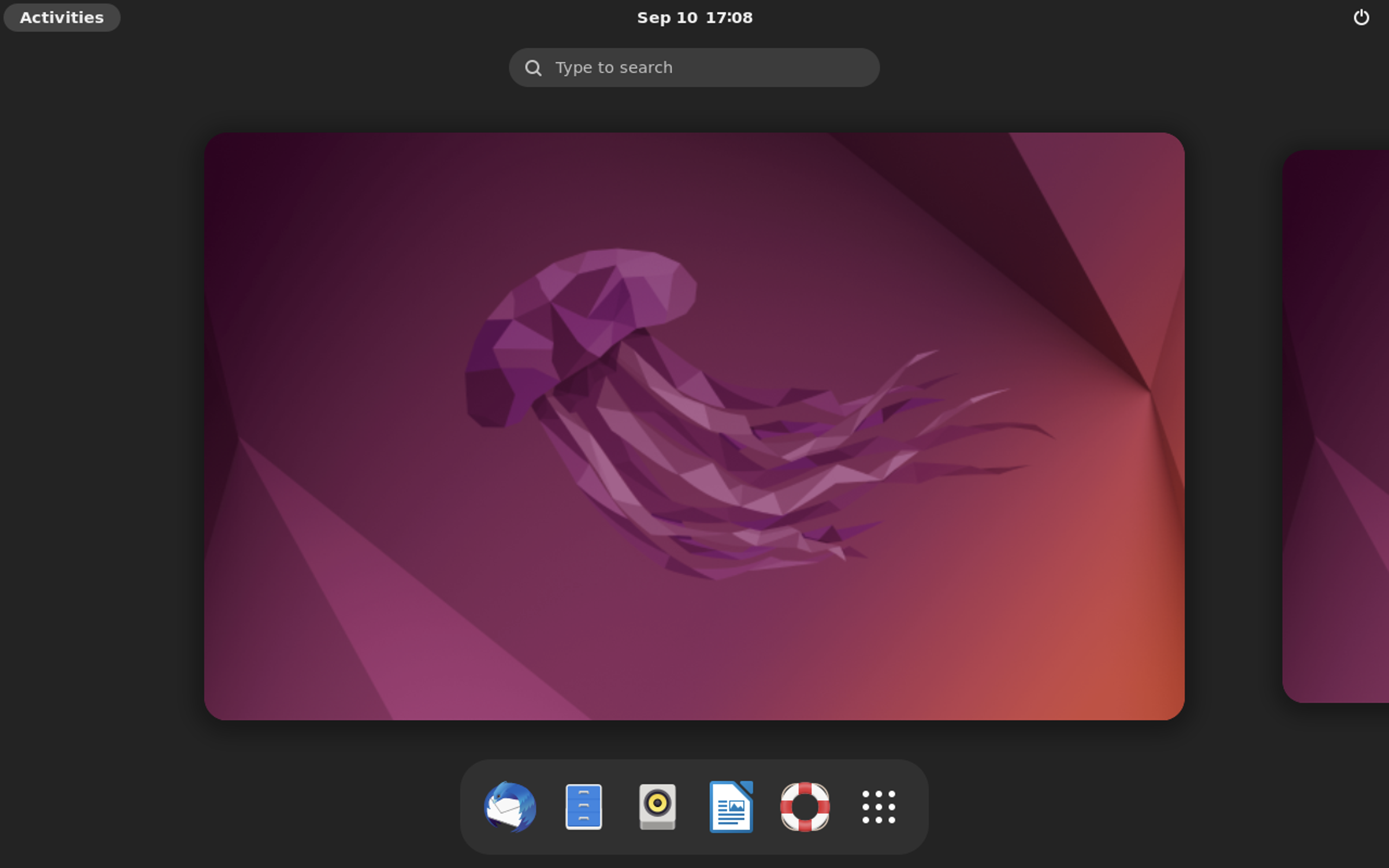
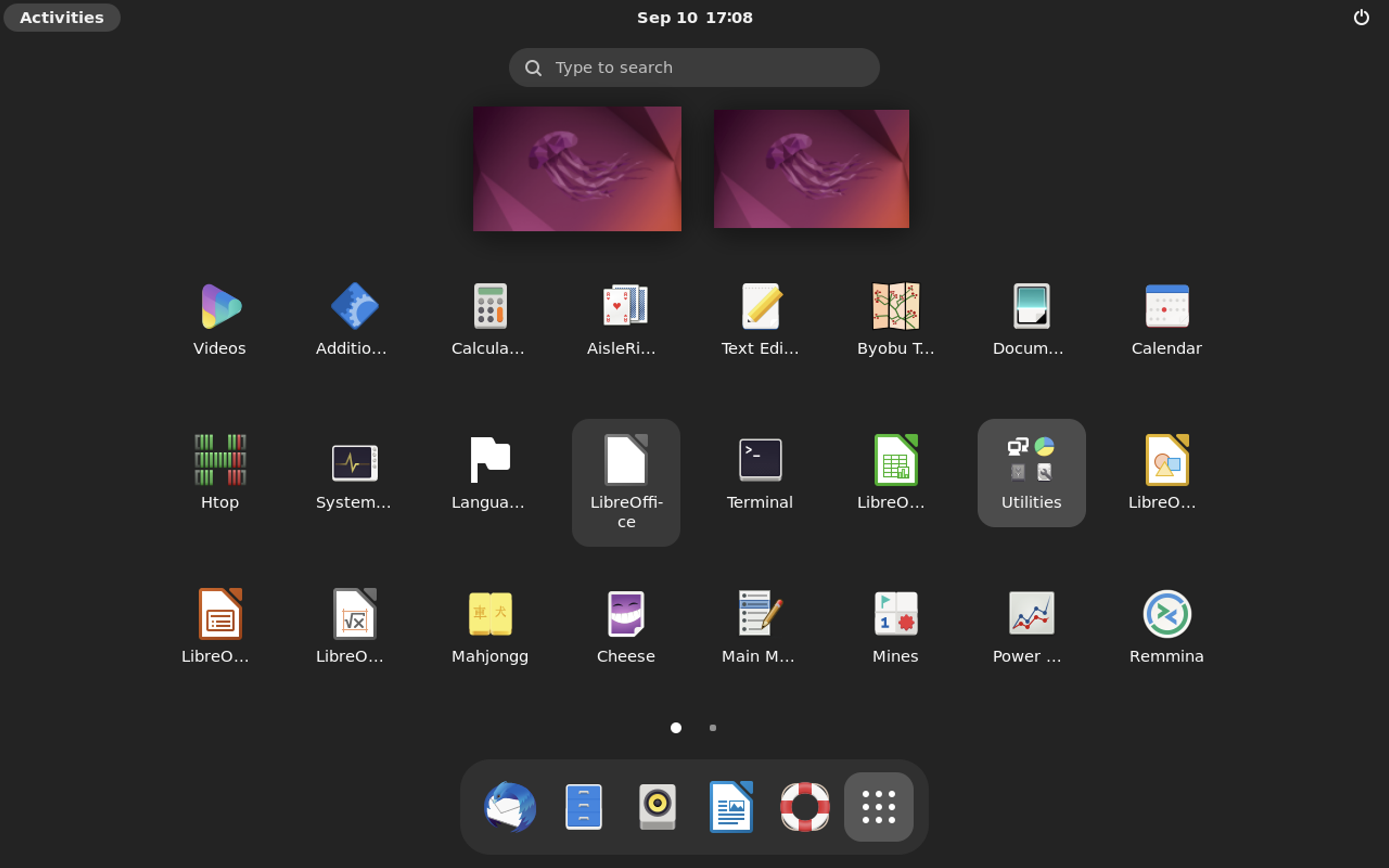
連線時 windows OS 用戶使用內建的遠端桌面連線工具即可, MacOS 用戶推薦使用 Microsoft Remote Desktop 這套軟體。
其他額外你可能需要的東西
- 安裝 Chrome: https://linuxize.com/post/how-to-install-google-chrome-web-browser-on-ubuntu-20-04/
- 安裝 Telegram:https://linuxhint.com/install-telegram-desktop-messenger-linux/
參考文件:
- https://www.linode.com/docs/guides/set-up-and-secure/
- https://www.linode.com/docs/guides/install-vnc-on-ubuntu-20-04/
- https://operavps.com/linux-vps-with-gui-and-rdp/
- https://documentation.suse.com/zh-cn/sles/15-SP2/html/SLES-all/cha-security-policykit.html